



MacBook Neo: Sleek, Fast, and School-Ready?
What is the Neo?
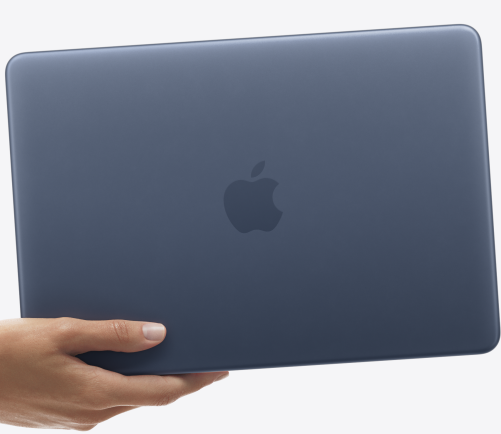
The MacBook Neo is Apple’s entry-level laptop, positioned below the MacBook Air, and represents the company’s first purpose-built budget MacBook in years. It is designed to bring macOS to a wider audience, offering a compact, colourful, and durable aluminium chassis in a selection of colours.
The Neo is slim and lightweight, making it more portable while maintaining Apple’s premium build quality.
It is targeted at students and casual users who need a reliable, lightweight laptop for productivity, web browsing, streaming, and light creative work. It is not intended for heavy video editing, professional graphics work, or demanding software applications.
Switching Sides: A Windows User’s First Impressions of the New MacBook Neo
As someone who has spent years firmly in the Windows ecosystem, trying out the new MacBook Neo, a sub-£500 for education Apple laptop. It was always going to be an interesting experience. Apple devices are typically associated with premium pricing, so seeing a more accessible option aimed at education is a notable shift.
Getting Started: Surprisingly Smooth
The initial setup process was clean, intuitive, and fast. Arguably simpler than some Windows deployments.
Installing Outlook, OneDrive, Microsoft 365 and Edge was straightforward, with seamless access to the school tenant once configured.
SSO & Identity: Not Quite ‘Join and Go’!
macOS supports SSO and identity integration, but it requires more planning than Windows (Entra ID join) or Chromebooks (Google Workspace). Expect MDM, configuration, and design decisions up front.
Classroom Use: Single Cable Simplicity… With a Catch
Using an Optoma Creative Touch 5 Gen 3, a single USB-C cable handled power, video and touch, making setup extremely simple for teaching scenarios.
However, there is an important caveat. The device only has two USB-C ports, and only one supports full USB 3.2 with DisplayPort Alt Mode. When connecting to older interactive panels that rely on HDMI for video and USB for touch:
- You will likely need dongles or adapters.
- Using separate USB-C ports for video (via HDMI adapter) and touch (USB) can consume both ports.
- Potentially leaving no spare port for charging, meaning the device runs on battery during use.
This is manageable with the right adapter strategy, but worth planning for in classroom deployments.
Performance, Specs & Cost
The device uses an Apple mobile-class chip, the A18 Pro from the iPhone 16 Pro, rather than a traditional M-series processor, as in the current MacBook Air and Pro ranges.
It includes 8GB unified memory with no upgrade option. While this may seem limiting, it helps significantly reduce cost and power usage.
Performance is solid for M365, web and teaching tasks, but heavy multitasking will expose its limits. Several large excel files and the desktop Outlook app at the same time, performance then started to show the strain.
Also, for those interested in replacing a dual screen dock setup, forget it. the Neo has no Thunderbolt at all in its port spec, and macOS generally does not support MST for multiple independent external displays the way many Windows laptops do. Apple’s own specs list only one supported external monitor.
OneDrive Integration
OneDrive integrates well into Finder, making cloud files easy to access and work with.
Windows vs macOS Adjustment
Let’s be honest, the biggest hurdle wasn’t performance or compatibility. It was muscle memory!
Switching from Windows to macOS is where things get jarring:
- Copy/paste becomes Command + C / Command + V instead of Ctrl
- Keyboard shortcuts feel unfamiliar, Navigation and window management behave differently.
None of this is a dealbreaker, but it does take time to adjust.
A small but notable frustration, although possibly user error rather than a platform flaw, was screen snipping. Coming from the simplicity of Windows’ Snipping Tool, the macOS approach initially felt a bit like a contortionist exercise. That said, with more time (and probably learning the right shortcuts), this is likely something that becomes second nature.
Software Compatibility
Legacy Windows applications (e.g. SIMS.Net) remain a key consideration. Check for macOS versions or alternative access methods before deployment.
Where It Fits
This feels like a strong teacher device, simple, reliable, and effective in the classroom.
It is less suited to shared or trolley-based student deployments where flexibility and compatibility are critical.
Final Thoughts
A surprisingly capable and affordable Apple device provided your environment is cloud-first and the deployment is well planned. If you have a heavy reliance on local file servers, active directory shortcuts and legacy software should be avoided.